While most BI and analytics platforms offer scheduled email delivery, the setup process, available options, and reliability vary dramatically by tool. This guide covers the universal steps, critical configuration settings, and common mistakes to avoid—so you can set up automated report emails once and trust they'll arrive correctly every time.
Key Takeaways
- Automated report emails export and deliver data on a set schedule — daily, weekly, or monthly — to specified recipients
- Most platforms support PDF, Excel, CSV, and HTML formats for attachments
- Critical settings: recipients, file format, frequency, start/end dates, access permissions
- Common failures: incorrect addresses, size limits, permission mismatches, spam filtering
- Tools like Sylus attach AI-generated summaries to scheduled reports, giving recipients instant context without logging in
How to Send Reports to Email Automatically
The exact UI varies by platform, but virtually all reporting tools follow the same four-step pattern — here's how each step works.
Step 1: Open the Report and Locate the Scheduling Option
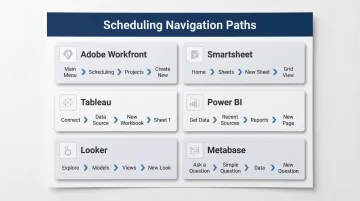
Most platforms surface scheduling under a "Send," "Share," "Schedule," or "Actions" menu within the report view. Here's where to find it in common tools:
| Platform | Navigation Path |
|---|---|
| Adobe Workfront | Main Menu > Reports > select report > Report Actions > Send Report > Repeating Deliveries tab |
| Smartsheet | Open report > File > Send as Attachment > Delivery > Schedule |
| Tableau | Open view/workbook > View toolbar > Watch > Subscriptions |
| Power BI | Open report > Top menu bar > Subscribe > Create a subscription |
| Looker | Open dashboard > Dashboard actions (three dots) > Schedule delivery |
| Metabase | Open dashboard > Three dots icon > Subscriptions |
The report must already exist and be finalized before scheduling. Any dynamic filters or prompts applied at runtime may not carry through to automated deliveries, depending on the platform — more on this below.
Step 2: Add Recipients and Customize the Email
Enter recipient email addresses (internal users, external stakeholders, or distribution lists). Be aware of platform-specific limitations:
- Email domain allowlists: Some platforms restrict external delivery based on approved domains
- Maximum recipient counts: Large lists can cause delivery failures on many systems
- Platform login requirements: Recipients may need a license to view the report in some tools
Most platforms let you customize:
- Subject line — "Weekly Sales Report - [Date]" gets opened; "Report Delivery" gets ignored
- Body message — add context about what the report covers and who should act on it
- Sender name — some tools let you set the "From" field to a team or role rather than an individual
Step 3: Select the File Format and Delivery Frequency
File format options:
- PDF — best for read-only sharing with consistent formatting across devices
- Excel/CSV — best when recipients need to filter, manipulate, or analyze the data
- HTML — inline email rendering (platform support varies)
- TSV — alternative to CSV for tab-separated data
Frequency options:
- One-time send
- Daily (specify time)
- Weekly (select day of week)
- Monthly (by date or day, such as "first Monday")
- Yearly
- After data refresh (Power BI, Looker)
Set start and end dates for time-bounded schedules — useful for quarterly reports or project-based deliveries.
Sylus goes a step further by attaching AI-generated summaries to scheduled report deliveries. Recipients get the data plus a plain-English explanation of key trends — no dashboard login required.
Step 4: Save the Schedule and Verify Delivery
After configuring settings, save the delivery schedule. It typically appears in a "Repeating Deliveries" panel or scheduled jobs list where you can confirm it's active.
Send a test delivery immediately after setup to verify:
- File format renders correctly
- File size doesn't exceed limits
- Recipients receive the email
- Attachments open properly
Check spam/junk folders if the test email doesn't arrive within an hour. Many platforms experience system load delays, so don't assume failure if delivery isn't instant.
When Should You Automate Report Emails?
Automated report delivery isn't right for every scenario. Use it when it genuinely saves time, not when it creates noise or technical debt.
Best-fit use cases:
- Send recurring stakeholder updates: weekly performance summaries, monthly finance reports, quarterly board decks
- Deliver fixed-schedule compliance reports that must arrive by specific dates
- Distribute outputs to stakeholders who don't have — or want — access to the BI tool itself
Not every reporting need fits the mold, though. Automation works against you in these situations:
When automated email delivery is NOT ideal:
- Exploratory or ad-hoc analysis: live dashboards and self-serve query tools handle fluid investigations better
- Frequently changing report structures: if layout or metrics shift often, scheduled deliveries will break
- High-volume data outputs: reports exceeding email attachment size limits (typically 10–25 MB) won't send
Key Settings That Affect Automated Report Delivery
Getting these configuration settings right at setup prevents the most common failures.
File Format and Size Limits
PDF is safest for rendering consistency, but Excel files with hyperlinks or large row counts can exceed platform limits:
- Adobe Workfront: 10 MB file size limit; files over 5 MB trigger a download link instead. Excel has a hard limit of 65,530 hyperlinks; documents exceeding this limit cannot be opened
- Power BI: 25 MB max attachment size; 20 pages max for full report attachments
- Tableau: 10 MB limit when using custom SMTP servers
- Looker: 20 MB for inline formats, 15 MB for attachments
Row count caps vary by platform:
- Workfront: 50,000 rows (PDF/TSV), 65,000 rows (.xls), 100,000 rows (.xlsx)
- Looker: 50,000 rows max for PDF tables
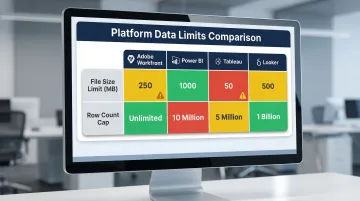
Pro tip: Disable hyperlinks for large tabular exports and use CSV/TSV formats if row counts approach 100,000 to avoid attachment size failures.
Recipient Permissions and Access Rights
Some platforms send the report using the scheduler's access rights (so recipients see only what that user can see), while others require recipients to have their own platform license. Mismatches here cause incorrect or missing data in delivered reports.
| Platform | Execution Context |
|---|---|
| Adobe Workfront | Runs with the access rights of a specified user—recipients see data based on that user's permissions |
| Power BI | The email displays data based on the subscription owner's permissions (RLS applies to owner) |
| Looker | Offers "Run schedule as recipient" option, applying each user's access filters individually |
Power BI and Workfront default to a single user's permissions, which risks exposing confidential data if sent to the wrong group. Looker's "Run schedule as recipient" is the safest option for per-user access control.
Delivery Timing and System Load
Scheduled delivery times are approximate. System load can cause delays of up to 24 hours on most platforms:
- Adobe Workfront: Explicitly warns of potential 24-hour delays due to system load
- Power BI: Notes that email delivery may be delayed during peak demand, but shouldn't exceed 24 hours
- Tableau: Warns that precise delivery time may vary if server load is high
- Smartsheet: Advises that emails may take up to 45 minutes to arrive
Never schedule a report for the exact minute it's needed for a meeting. Schedule deliveries the night before to absorb potential queue delays.
Report Filters and Dynamic Content
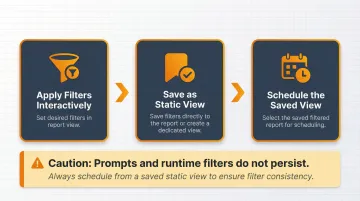
Scheduled reports capture a static snapshot at send time. Filters or prompts set interactively typically don't apply, causing the report to run unfiltered and deliver the wrong data.
Platform-specific behavior:
- Workfront: "Report deliveries do not contain prompts. If you wish to limit data in a report delivery, we recommend applying filters to the report that you want to send"
- Tableau: "Any filters you apply to the view won't be reflected in the subscription. To subscribe users to a filtered view, save a custom view with those filters, then subscribe users to that view"
- Power BI: Users must check the "Include my changes" box to capture session changes like filters, slicers, and bookmarks
Apply and save filters directly to the report before scheduling. Create a dedicated, static view for each subscription to ensure filter persistence.
Common Mistakes When Scheduling Report Emails
A few setup errors account for most failed or misdirected automated reports. Watch for these before going live.
Skipping a Test Send
Most teams set up the schedule and assume it works—only discovering a formatting issue, broken attachment, or spam filter block days or weeks later when a stakeholder complains. Always send a test delivery immediately after configuration.
Adding Too Many Recipients to a Single Delivery
Oversized recipient lists cause delivery failures on many platforms. Split large audiences into multiple scheduled deliveries, or use a distribution list where the platform supports it.
Using Report Prompts Instead of Saved Filters
Prompts (interactive filter selections) typically don't persist in automated deliveries. This causes the report to run without filters and deliver the wrong data. Apply and save filters to the report itself before scheduling.
How to Fix Broken or Missing Automated Report Emails
Even correctly configured schedules can break over time — usually due to permission changes, data size growth, or platform updates. The three most common failure points are delivery failures, incorrect data, and schedules that silently stop running.
Emails Not Arriving
The most common culprits are spam filtering, a mistyped address, or a sending domain that isn't on your organization's allowlist. Start here:
- Check spam/junk folders for all recipients
- Verify recipient email addresses for typos
- Confirm the sending domain is on your organization's email allowlist
Platform-specific sender addresses to allowlist:
- Adobe Workfront:
notifications@my.workfront.com - Power BI:
no-reply-powerbi@microsoft.com - Tableau:
@cloudmail.tableau.com - Smartsheet:
noreply@smartsheet.com
Report Contains Wrong or Incomplete Data
This usually means filters weren't saved to the report itself, or the delivery is running under a different user's access rights than intended. To resolve this:
- Review the report's saved filter configuration
- Check the "deliver with access rights of" setting if the platform offers it
- Verify that runtime prompts aren't being used instead of saved filters
Schedule Stopped Sending After Working Correctly
If a schedule worked previously and stopped without warning, the report likely hit a platform size or row limit, reached a scheduled end date, or the user who originally created the schedule lost permissions. Check these first:
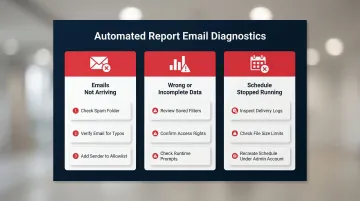
- Check delivery logs (if available)
- Reduce report scope with additional filters to shrink file size
- Recreate the scheduled delivery under an active admin account
Frequently Asked Questions
Can I automatically email reports to people outside my organization?
Most platforms allow external email addresses as recipients, but recipients typically receive the report as an attachment and cannot log in to interact with the data. Some platforms restrict external delivery based on email domain allowlists configured by admins—check your platform's documentation or ask IT to confirm.
What file formats are available for automated report emails?
Common options include:
- PDF — formatted, read-only sharing
- Excel or CSV — when recipients need to manipulate the data
- HTML — rendered inline in some platforms
- TSV — plain delimited export
Format availability depends on your specific tool—see the comparison table in Step 3 above.
How do I stop or modify a scheduled report delivery?
Most platforms store active schedules in a "Scheduled Deliveries" or "Repeating Deliveries" section within the report's send/share menu. You can delete, pause, or edit the schedule from there without affecting the underlying report.
Can I apply filters to an automatically emailed report so recipients only see relevant data?
Yes, but filters must be saved directly to the report before scheduling—interactive prompts and runtime filters typically don't persist in automated deliveries. Create a dedicated filtered view specifically for the subscription.
What's the difference between scheduling a report email and sharing a live dashboard?
A scheduled email sends a static snapshot (PDF or Excel) captured at a point in time, while a shared live dashboard gives recipients real-time, interactive access to the data. Use email delivery for periodic summaries; use live dashboards for ongoing exploration.
How far in advance should I schedule an automated report email?
Many platforms experience system load delays of up to several hours between the scheduled send time and actual delivery. Schedule at least a few hours before the report is needed—a full day ahead for anything time-sensitive.